
Instructions for Upload Errors
Issues Uploading Documents
If you experience issues uploading documents to your form, the problem is usually related to file size limits or browser settings. Please review the information below to resolve common issues and successfully submit your documents.
File Upload Requirements
- Total upload size must be 3 MB or less
- The limit applies to all files combined, not each file individually
Common Upload Errors
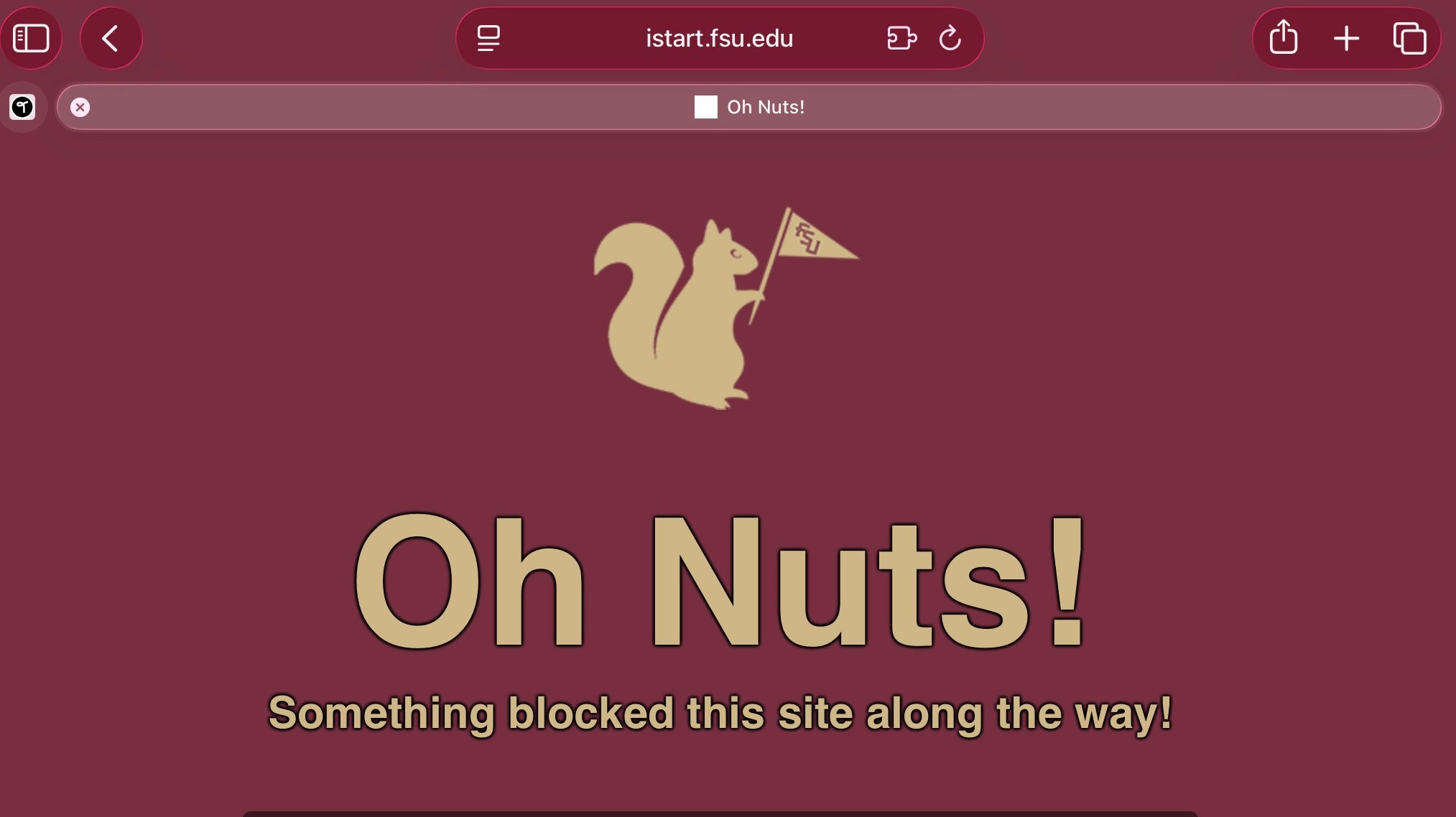
Upload Blocked
You may see an error page indicating that your request was blocked (for example, the “Oh Nuts!” screen). This typically happens when uploaded files exceed the allowed size.
Form Submission Error
Unexpected Error Occurred - Please review the e-form to determine if you need to resubmit
This message may appear when files exceed the size limit or need to be re-uploaded.
How to Check File Size
- Windows: Right-click file → Properties → View size
- Mac: Right-click file → Get Info → View file size
Note: If uploading multiple files, add the sizes together.
How to Reduce File Size
- Save images as JPG instead of PNG
- Lower scan resolution (150–200 dpi recommended)
- Use PDF compression tools (Adobe, Smallpdf, etc.)
Additional Troubleshooting
- Clear your browser cache
- Close and reopen your browser
- Try a different browser (Chrome, Edge, Firefox, Safari)
- Scan files for viruses
Important Notes About Drafts
- Files uploaded while using Save Draft are not saved
- You must re-upload all documents before submitting
- If you see “Please enter valid value,” re-upload files
If you need your form reset to draft status, contact:
cge-newstudents@fsu.edu
Do not cancel your form, as this will delete your data.
Submission Tips
- Wait at least 1 minute after clicking submit
- Do not click submit multiple times
Need Assistance?
If you continue experiencing issues, please email: cge-newstudents@fsu.edu
Include screenshots of any error messages.
Example Error Messages
Upload Blocked Example:

Form Error Example:
